
2 How to upload your files (Excel, drawings) and what happens next
The register of prvky from a spreadsheet, floor drawings, and what the app does with them.
Excel or CSV
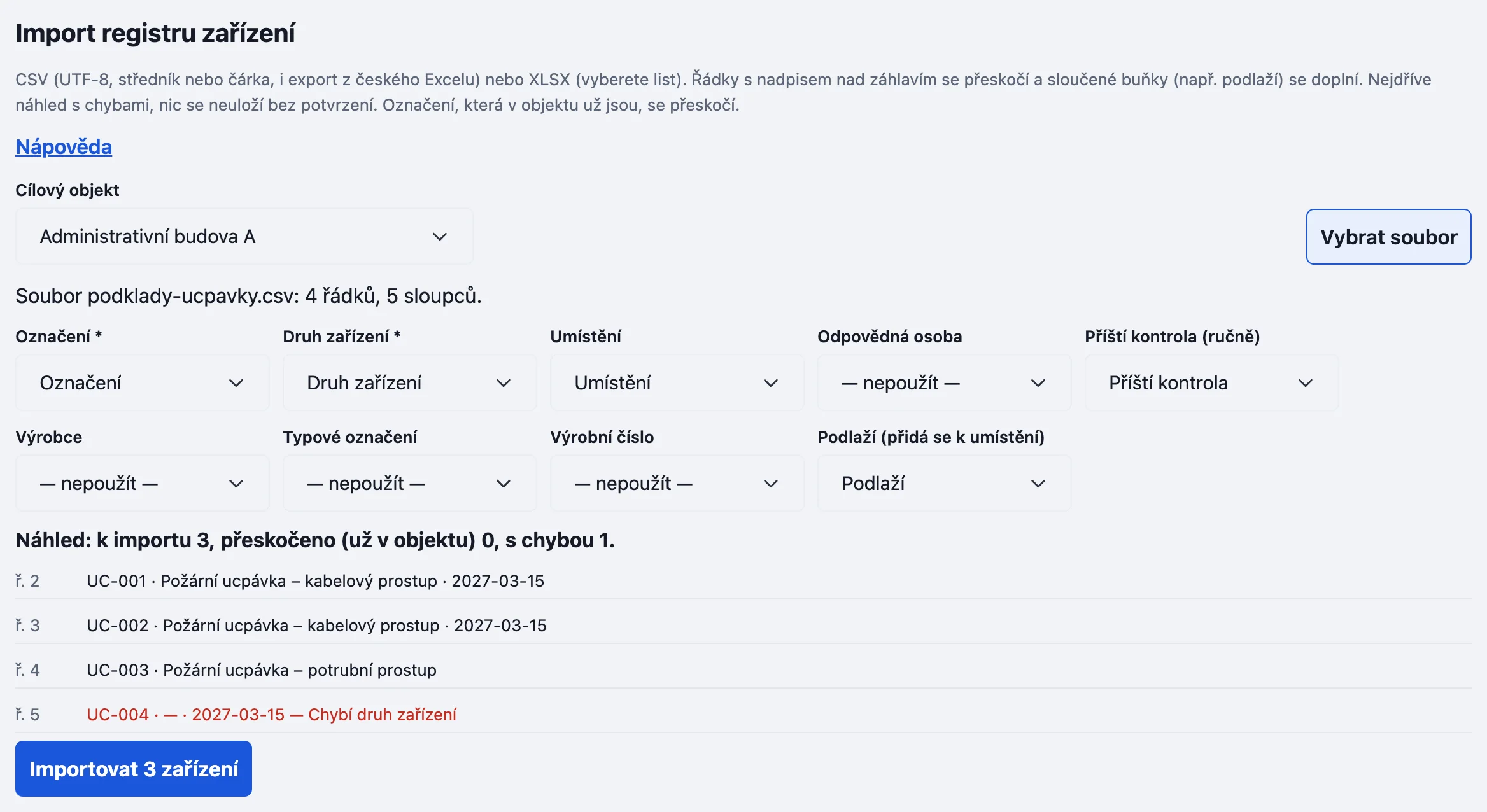
- Open Nastavení → Import a export (Settings → Import and export). Choose the target objekt and Vybrat soubor (choose file). CSV (UTF-8, also from a Czech Excel) or XLSX up to 5 MB and 2,000 rows will do; for XLSX you pick the sheet.
- Map the columns. Označení (the number) and Druh zařízení (the type) are required. If the file has no type column, you enter it once for all rows.
- Read the Náhled (preview): how many rows will be imported, which are skipped (the number is already in the objekt) and which have an error. Nothing is saved until you confirm Importovat … zařízení (Import … devices).
Drawings
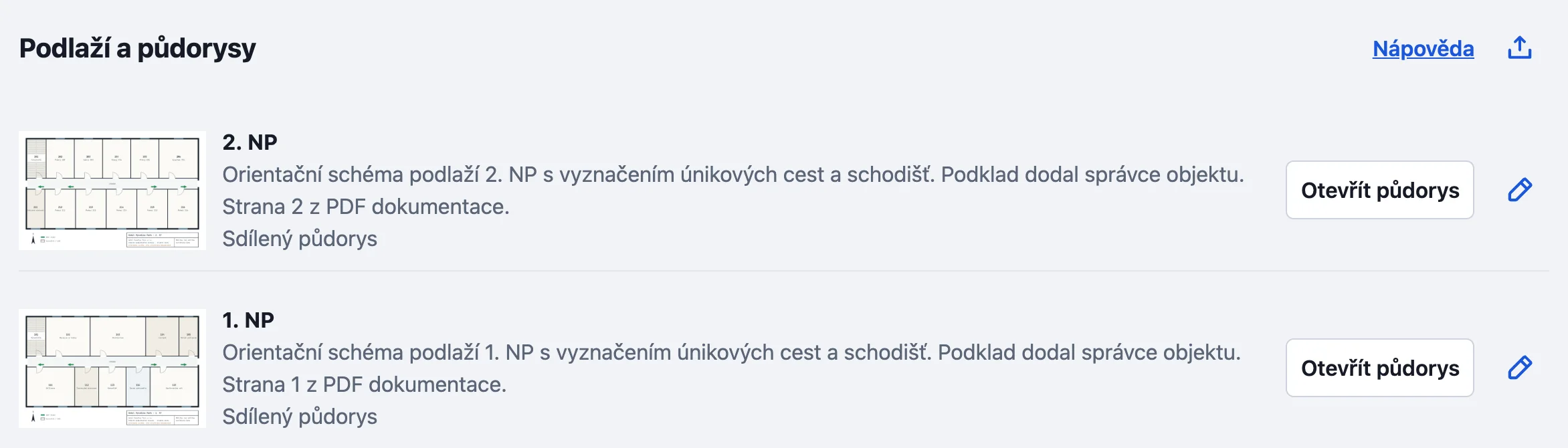
Objekt → Evidence a údaje objektu → Půdorysy, the upload icon next to the heading. You upload a PDF, JPG or PNG. You name each page (say „2. NP“) and save it. A saved drawing cannot be replaced, only a new one added.
Upload files for preparation
On Přehled (Overview), Nahrát podklady (upload files) lets you send files for preparation of your register. The overview card shows the processing status. To build the register yourself, use the import steps above; imported prvky appear in the objekt's list.
What happens next
You place prvky on the drawing by tapping it; the Bez viditelného umístění (without visible location) filter shows which are still missing. Then plan the first kontrola.
Something missing or different from your screen? Write to us at info@revispark.com.